
Create Captions with AI Speech-to-Text
Transcribe spoken English with the local Whisper tool, review the timed text, and add captions to your timeline.
Turn speech in a video or audio clip into timed captions with Video Weaver's Speech-to-text (Whisper) tool. This walkthrough uses English audio and the local Whisper engine.
Before You Start
Choose a short video or audio clip with clear speech. You can select a clip already on your timeline, or choose a file directly in the transcription dialog. If you plan to use Current Clip, add the media to your project and select its clip on the timeline first.
1. Open Speech-to-text
In the editor, open Tools (the hammer icon) and choose Speech to Text. The Speech-to-text (Whisper) dialog opens.
2. Set the language and model
Keep Transcription engine set to Whisper (local). Set Language to English for English speech instead of Auto-Detect. In this example, the selected model is tiny.en; larger models may take longer to prepare and use more memory.
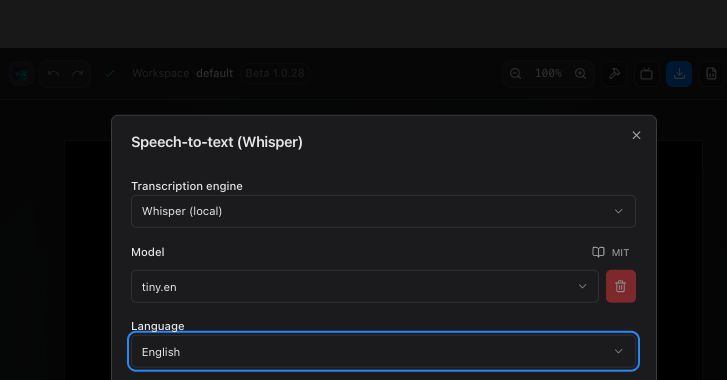
If the dialog says Preparing Whisper engine..., wait until the engine is ready before starting. On first use, model preparation can take a little longer.
3. Choose the audio source
- Select Upload File to choose a video or audio file from your device.
- Select Current Clip to transcribe the selected timeline clip. This option is unavailable until a supported clip is selected.
For the cleanest transcription, use a clip with clear speech and little background noise. Leave Word-level transcription unchecked for regular caption segments; enable it when you need timing for individual words.
4. Transcribe and review
Click Transcribe and wait for processing to finish. The result appears as SRT text, with a start time, end time, and caption text for each segment. Read through the result before importing it; correct names or technical terms in the caption editor afterward if needed.
5. Add the captions to your timeline
Click Import to Captions. Video Weaver creates timed caption clips on the Captions track and closes the dialog. Open the Captions panel to review the clips, edit their wording, and adjust their appearance.
If Transcribe Is Unavailable
Make sure a file is selected under Upload File, or select a supported clip before switching to Current Clip. If the engine is still preparing, wait for it to finish. For English speech, check that Language is set to English.
Ready to start?
Apply what you just learned directly in Video Weaver.