
AI Tools in Video Weaver
Choose the right AI tool for speech, sound, video, or image work, and learn what to expect on first use.
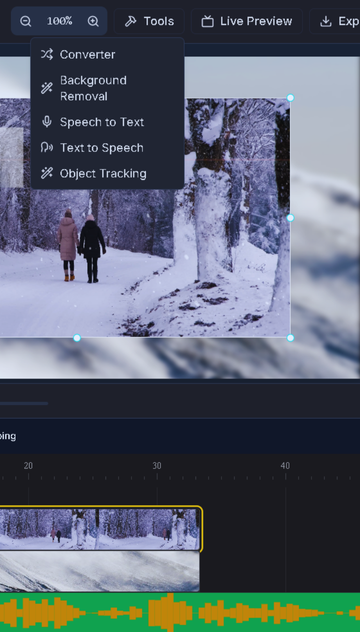
Video Weaver includes AI tools for common editing tasks. Some are opened from the Tools menu; others appear in the selected clip's tools panel. Choose by the kind of work you need:
Speech and audio
- Speech to Text (Whisper): Turn spoken words into timed captions. Open it from Tools.
- Text to Speech: Create a voice track from a script. Open it from Tools or a caption clip's tools.
- Audio Denoiser: Reduce background noise. Open it from Tools.
- Silence Detection: Find and trim pauses. Open it from Tools.
- Audio Speaker Track: Identify speaker segments and create animated audio visualizers. Open it from Tools.
- Scribis Avatar (optional): Generate a speaking-avatar video from a portrait and selected clip audio. Select an audio clip; Scribis must be enabled.
Video
- Background Removal: Remove a video background. Open it from Tools.
- Object Tracking: Track a subject or apply face anonymization, replacement, or a crop. Open it from Tools.
- Face mosaic & exclusions: Mosaic faces in a selected video, with optional people to keep clear.
- Improve video quality 4×: Upscale a selected video clip.
- Generate on-screen captions: Describe visible video content with short, editable captions.
Images
- Background Removal: Create a transparent cutout or use click selection on a still image. Open it from Tools.
- Remove objects from the frame: Mark an area to remove from a selected image or clip.
- Advanced AI fill: Paint a mask to generate a repair for a selected still image.
For selected-clip tools, add the media to the timeline and select its clip before looking in the clip tools panel.
Before using an AI tool
- Add the source media to the timeline when the tool works on a selected clip. Click the clip so its tools appear.
- Check the tool's source selector. Some tools can use the current clip; others work on an uploaded file or a still image.
- The first run of a local model may need to prepare model data in the browser. Keep the page open while it loads. A large model such as Advanced AI fill needs WebGPU and about 1.27 GB of storage.
- Preview and review the result before replacing a clip. Where available, choose Add to keep the original and compare both versions.
Pick the right kind of caption
Speech to Text listens to the audio and creates a transcript with timings. Generate on-screen captions looks at video frames and drafts short descriptions of visible content; it does not transcribe dialogue. Use the first for what people say and the second for what viewers see.
Some tools depend on browser capabilities or optional services. For example, on-screen caption generation requires Chrome's built-in Prompt API, and the avatar tool only appears when Scribis is enabled in Plugins. The avatar tool sends the chosen portrait and selected clip audio to the configured Scribis endpoint, so check that service before using personal media. If an availability message appears, follow it before starting processing.
Ready to start?
Apply what you just learned directly in Video Weaver.